



Canva AI Image Generator Review: Magic Media Worth Using?
Canva began as a simple drag-and-drop design tool that made graphic creation accessible to everyone. Today it has evolved into a complete visual content platform capable of handling everything from social media posts to business presentations. As AI technology advanced Canva introduced generation features across multiple formats including images videos audio and presentations. Among these tools Magic Media serves as their flagship AI image generator.
This review provides a practical evaluation of Magic Media. We examine its real world performance for content creators and businesses looking for efficient visual solutions. The analysis covers key strengths limitations and overall value to help you determine if this tool meets your needs.
What Is Canva AI Image Generator?
Canva is an easy-to-use online design tool. With drag-and-drop features and ready-made templates, anyone can create visuals quickly. Launched in 2013 by Melanie Perkins, Cliff Obrecht, and Cameron Adams, the Australian company grew fast. By 2021, it had over 75 million monthly users and was valued at $40 billion.
As AI became more popular, Canva added AI tools to help users design faster. Now, both individuals and teams use these features to create professional-looking graphics without needing a designer.
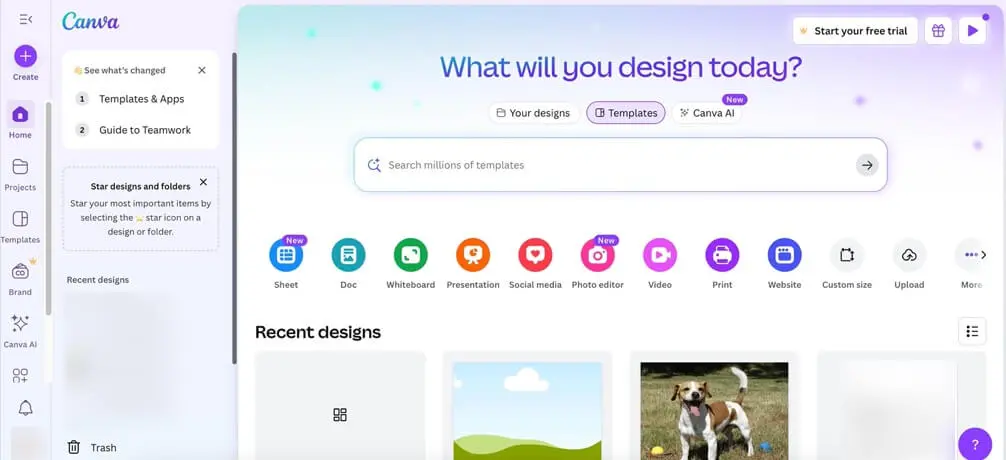
The Canva AI Image Generator lets users turn text into images in seconds. Just type a description, and it generates a custom picture. It’s especially useful for small businesses, social media managers, and content creators who need fresh visuals often. Powered by Magic Media, this tool works right inside Canva. You can create and edit AI images without switching apps, making design smoother and faster. Magic Media blends traditional design with AI, making it a key part of Canva’s toolkit.
Key Features of Canva AI Image Generation
Canva AI revolutionizes visual content creation by putting professional image generation at your fingertips. Transform simple text prompts into stunning visuals without leaving your design workspace.
Powered by Advanced AI Models
Canva's image generator runs on Dream Lab technology, enhanced by Leonardo.Ai's Phoenix model for superior image quality. This powerful combination delivers professional-grade visuals that rival traditional stock photography. The seamless integration means generated images appear directly in your project canvas, eliminating the need to switch between platforms. Create custom imagery that perfectly matches your vision while maintaining workflow efficiency and creative momentum.
Diverse Templates and Style Options
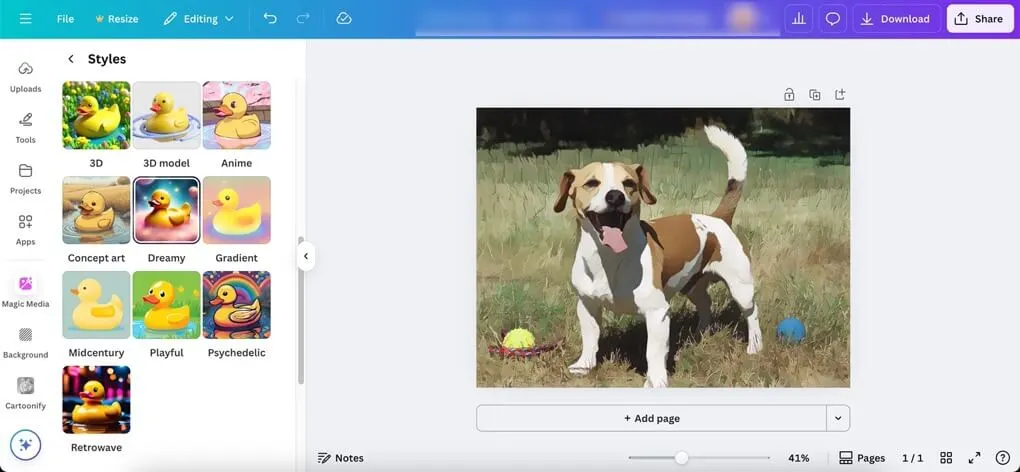
Pick from hundreds of designs and artistic styles to fit any project, from professional presentations to eye-catching social media posts. The AI automatically adjusts to match your preferred look and feel. You'll find popular options like 3D graphics, anime artwork, oil painting effects, and cinematic photo styles. Easily tweak colors, layouts and more to keep your branding consistent or experiment with different creative directions across various art styles.
Extensive Third-Party App Integration
Canva's app marketplace brings specialized tools like Cartoonify (for instant cartoon conversions) and EmojiArtist (for custom emoji creation) right into your workspace. These partner apps expand what you can do without ever leaving Canva. Mix and match different AI effects to create unique visuals that go far beyond standard templates - all while keeping your workflow seamless and efficient.
Complete Design Ecosystem
Generated images integrate seamlessly with Canva's full suite of editing tools. Use Magic Edit to modify specific areas, Magic Eraser to remove unwanted elements, or Background Remover to isolate subjects.
These complementary features create a comprehensive workflow where AI-generated content becomes the foundation for further customization. The result is a streamlined process that handles everything from initial concept to final polish within one platform.
How to Use Canva AI Photo Generator
Creating professional images with Canva AI takes just minutes. Follow these simple steps to transform your ideas into stunning visuals.
Step 1: Access Magic Media
Open Canva and locate the Magic Media tool in your design workspace. Click on the Magic Media icon to launch the AI image generator. This feature is available directly within your canvas, so you can generate images without switching between different applications or interfaces.

Step 2: Choose Style and Enter Your Prompt
Select your preferred style from the available options or describe your desired aesthetic directly in the text prompt. Write a clear description of what you want to create in the prompt box. The more specific your description, the better your results will be. You can combine style preferences with detailed descriptions for optimal output.
Step 3: Generate and Customize
Click the Generate button to create your image. Canva AI will process your request and provide several variations to choose from. Review the generated options and select the one that best matches your vision. You can generate additional variations by adjusting your prompt or trying different style combinations until you achieve the perfect result.

Tip: Simple prompts may produce inaccurate details. Always check your generated images carefully. For example, asking for "a dog on grass" might occasionally create a dog with five legs or other unusual features.
Step 4: Edit and Export
Once you select your preferred image, use Canva's editing tools to make final adjustments. Add text overlays, apply filters, insert graphics, or incorporate your brand logo as needed. When your design is complete, click the Share button to download your image or share it directly to your preferred platforms.
Canva Pricing Plans
Canva offers flexible pricing options to suit different design needs, from casual creators to professional teams. Understanding each plan helps you choose the right features without overpaying.
Free Plan Features and Limitations
The Canva Free plan provides basic design tools at no cost. Users can access thousands of free templates, photos, and graphics along with standard editing features and 5GB cloud storage.
However, premium content requires individual purchases, AI tools have monthly limits, and advanced features like background removal are unavailable. The free version works well for beginners but lacks brand kits and priority support.
Plan Comparison
| Feature | Free | Pro | Teams |
| Price | $0 | $12.99/month or $119.99/year | $14.99/month for up to 5 users |
| Premium Content | Limited | 100+ million images, videos, templates | 100+ million images, videos, templates |
| AI Tools | Limited usage | 500 monthly credits | 500 monthly credits per user |
| Brand Kits | Not available | Up to 100 brand kits | Unlimited brand kits |
| Cloud Storage | 5GB | 1TB | 1TB per user |
| Team Features | Not available | Not available | Collaboration tools, admin controls |
| Customer Support | Community only | Priority support | Priority support |
For Individual Users: Canva Pro offers 23% savings with annual billing and provides excellent value for regular designers. The premium content library alone justifies the cost compared to purchasing stock images separately. AI features save significant time on routine tasks.
For Teams: The Teams plan's collaborative features and brand management tools reduce revision cycles and improve productivity. While more expensive, the administrative controls and design consistency benefits make it worthwhile for organizations with multiple designers.
When to Use Canva AI (And When Not To)
When It Works Best
Understanding when Canva AI fits your workflow helps maximize its benefits while avoiding frustrating limitations.
- Small businesses and startups: Need quick, professional visuals without hiring designers. Creates consistent brand materials for social media and marketing campaigns efficiently.
- Content creators and bloggers: Require frequent visual content for posts and articles. Generates custom images that match specific topics without stock photo licensing costs.
- Marketing teams with tight deadlines: Must produce multiple design variations quickly. Transforms simple text prompts into polished graphics for A/B testing and campaigns.
When to Skip Canva AI
- Professional photographers and illustrators: Need pixel-perfect accuracy and artistic control. AI-generated images often have anatomical errors like missing limbs or distorted features that require extensive fixes.
- Users with slow internet or older devices: Experience frustrating delays due to heavy online platform demands. The feature-rich interface consumes significant CPU resources and loads slowly.
- Projects requiring specific technical accuracy: Demand precise details like medical diagrams or architectural plans. AI generation lacks the reliability needed for professional documentation and technical illustrations.
Best Alternative to Canva AI Image Generator
While Canva AI offers powerful features, its online platform demands high system resources and stable internet connections. Users often waste credits adjusting prompts to fix unsatisfactory generated images, making the process expensive and time-consuming. Similar challenges exist with other popular AI image tools like Xole AI, Novel AI, and Artbreeder.
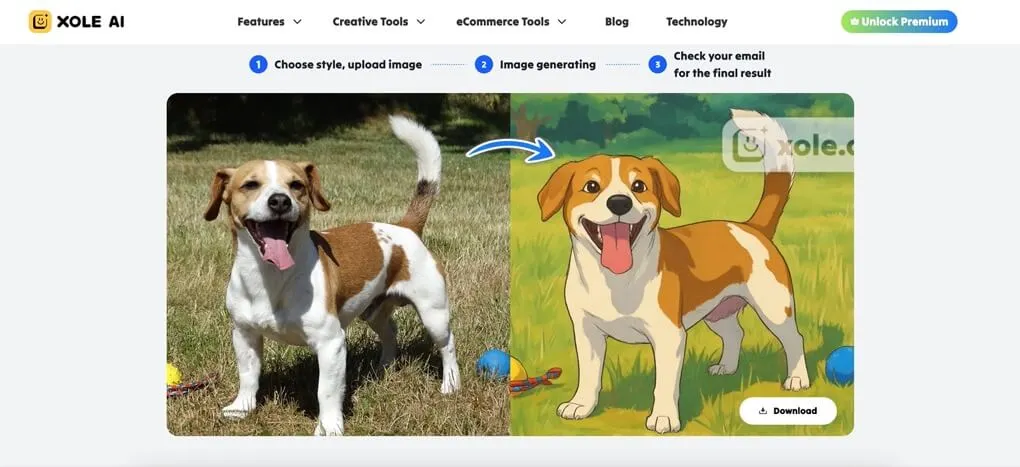
For users with clear style preferences, Xole AI presents a focused alternative. This specialized platform transforms photos into various artistic styles including cartoon, anime, and sketch effects, along with additional creative tools. The service targets specific transformations rather than attempting to cover every design need, making it more efficient for targeted projects.
Key Advantages of Xole AI
- One-click simplicity - Upload your image and click a button to instantly transform it. No complex prompt writing or trial-and-error adjustments required for consistent results.
- Professional quality output - Fixed, optimized prompts ensure style consistency across all generated images. Advanced selective processing keeps facial details sharp while applying artistic effects to backgrounds.s
- Diverse artistic styles - Transform images into popular styles including AI Ghibli, AI Pixar, AI Disney, and AI Lego effects. Each style maintains professional quality while preserving important facial and structural details.
- Beyond basic style transfer - Supports specialized e-commerce features including AI Product Photography, AI Recipe Generator, and AI Holiday Sale Banner creation. Regular updates add new capabilities and styles.
- Free trial available - Test the platform before committing to paid plans. Experience the quality and speed without upfront investment.
- Lightweight platform - Unlike massive integrated platforms, Xole AI runs efficiently without demanding professional skills or high-end computer specifications. Faster loading and lower system requirements make it accessible to more users.
Final Verdict
Canva AI's Magic Media brings impressive convenience to everyday design work. The background remover performs reliably, while the seamless integration with Canva's editing suite makes it easy to polish generated images. Users can access various artistic styles and templates without leaving their workspace, creating a smooth design experience.
However, the AI image generator still shows noticeable limitations. Generated images often contain anatomical errors or inconsistent details that require manual fixes. These issues likely stem from the underlying AI models rather than Canva's implementation. For users seeking more advanced image generation capabilities, exploring dedicated AI tools online might deliver better results for specific creative needs.


- What Is Canva AI Image Generator?
- Key Features of Canva AI Image Generation
- Powered by Advanced AI Models
- Diverse Templates and Style Options
- Extensive Third-Party App Integration
- Complete Design Ecosystem
- How to Use Canva AI Photo Generator
- Step 1: Access Magic Media
- Step 2: Choose Style and Enter Your Prompt
- Step 3: Generate and Customize
- Step 4: Edit and Export
- Canva Pricing Plans
- When to Use Canva AI (And When Not To)
- When It Works Best
- When to Skip Canva AI
- Best Alternative to Canva AI Image Generator
- Final Verdict