


Canva AI画像ジェネレーター評価:Magic Mediaは使う価値があるか?
Canva began as a simple drag-and-drop design tool that made graphic creation accessible to everyone. Today it has evolved into a complete visual content platform capable of handling everything from social media posts to business presentations. As AI technology advanced Canva introduced generation features across multiple formats including images videos audio and presentations. Among these tools Magic Media serves as their flagship AI image generator.
This review provides a practical evaluation of Magic Media. We examine its real world performance for content creators and businesses looking for efficient visual solutions. The analysis covers key strengths limitations and overall value to help you determine if this tool meets your needs.
What Is Canva AI Image Generator?
Canva is an easy-to-use online design tool. With drag-and-drop features and ready-made templates, anyone can create visuals quickly. Launched in 2013 by Melanie Perkins, Cliff Obrecht, and Cameron Adams, the Australian company grew fast. By 2021, it had over 75 million monthly users and was valued at $40 billion.
As AI became more popular, Canva added AI tools to help users design faster. Now, both individuals and teams use these features to create professional-looking graphics without needing a designer.
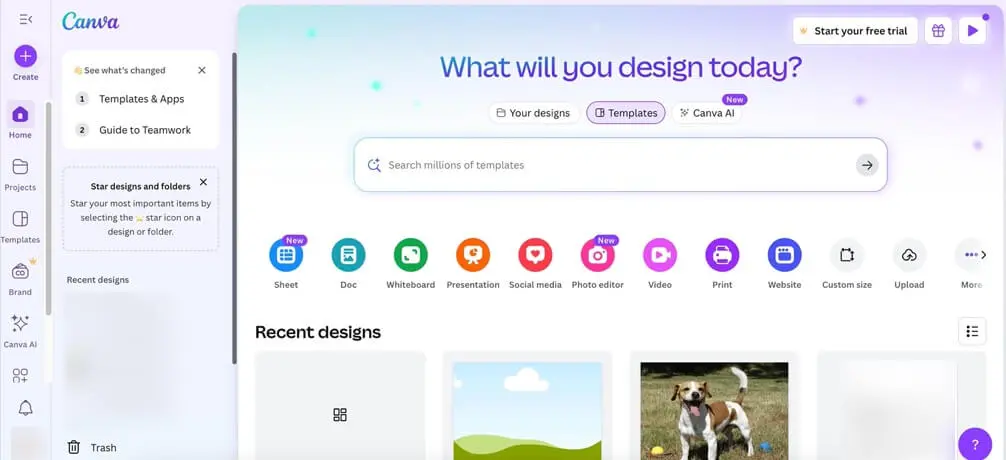
The Canva AI Image Generator lets users turn text into images in seconds. Just type a description, and it generates a custom picture. It’s especially useful for small businesses, social media managers, and content creators who need fresh visuals often. Powered by Magic Media, this tool works right inside Canva. You can create and edit AI images without switching apps, making design smoother and faster. Magic Media blends traditional design with AI, making it a key part of Canva’s toolkit.
Key Features of Canva AI Image Generation
Canva AI revolutionizes visual content creation by putting professional image generation at your fingertips. Transform simple text prompts into stunning visuals without leaving your design workspace.
Powered by Advanced AI Models
Canva's image generator runs on Dream Lab technology, enhanced by Leonardo.Ai's Phoenix model for superior image quality. This powerful combination delivers professional-grade visuals that rival traditional stock photography. The seamless integration means generated images appear directly in your project canvas, eliminating the need to switch between platforms. Create custom imagery that perfectly matches your vision while maintaining workflow efficiency and creative momentum.
Diverse Templates and Style Options
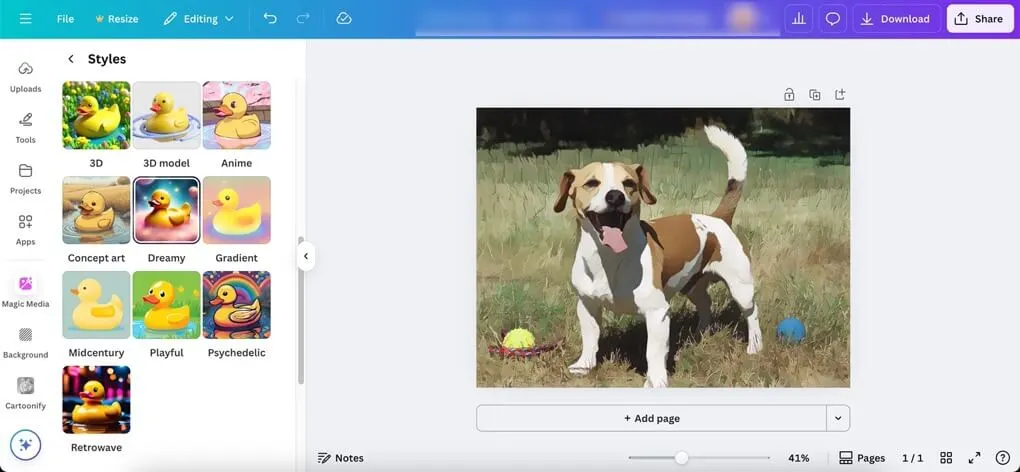
Pick from hundreds of designs and artistic styles to fit any project, from professional presentations to eye-catching social media posts. The AI automatically adjusts to match your preferred look and feel. You'll find popular options like 3D graphics, anime artwork, oil painting effects, and cinematic photo styles. Easily tweak colors, layouts and more to keep your branding consistent or experiment with different creative directions across various art styles.
Extensive Third-Party App Integration
Canva's app marketplace brings specialized tools like Cartoonify (for instant cartoon conversions) and EmojiArtist (for custom emoji creation) right into your workspace. These partner apps expand what you can do without ever leaving Canva. Mix and match different AI effects to create unique visuals that go far beyond standard templates - all while keeping your workflow seamless and efficient.
Complete Design Ecosystem
Generated images integrate seamlessly with Canva's full suite of editing tools. Use Magic Edit to modify specific areas, Magic Eraser to remove unwanted elements, or Background Remover to isolate subjects.
These complementary features create a comprehensive workflow where AI-generated content becomes the foundation for further customization. The result is a streamlined process that handles everything from initial concept to final polish within one platform.
How to Use Canva AI Photo Generator
Creating professional images with Canva AI takes just minutes. Follow these simple steps to transform your ideas into stunning visuals.
Step 1: Access Magic Media
Open Canva and locate the Magic Media tool in your design workspace. Click on the Magic Media icon to launch the AI image generator. This feature is available directly within your canvas, so you can generate images without switching between different applications or interfaces.

Step 2: Choose Style and Enter Your Prompt
Select your preferred style from the available options or describe your desired aesthetic directly in the text prompt. Write a clear description of what you want to create in the prompt box. The more specific your description, the better your results will be. You can combine style preferences with detailed descriptions for optimal output.
Step 3: Generate and Customize
Click the Generate button to create your image. Canva AI will process your request and provide several variations to choose from. Review the generated options and select the one that best matches your vision. You can generate additional variations by adjusting your prompt or trying different style combinations until you achieve the perfect result.

Tip: Simple prompts may produce inaccurate details. Always check your generated images carefully. For example, asking for "a dog on grass" might occasionally create a dog with five legs or other unusual features.
Step 4: Edit and Export
Once you select your preferred image, use Canva's editing tools to make final adjustments. Add text overlays, apply filters, insert graphics, or incorporate your brand logo as needed. When your design is complete, click the Share button to download your image or share it directly to your preferred platforms.
Canva Pricing Plans
Canva offers flexible pricing options to suit different design needs, from casual creators to professional teams. Understanding each plan helps you choose the right features without overpaying.
Free Plan Features and Limitations
The Canva Free plan provides basic design tools at no cost. Users can access thousands of free templates, photos, and graphics along with standard editing features and 5GB cloud storage.
However, premium content requires individual purchases, AI tools have monthly limits, and advanced features like background removal are unavailable. The free version works well for beginners but lacks brand kits and priority support.
Plan Comparison
| Feature | Free | Pro | Teams |
| Price | $0 | $12.99/月または$119.99/年 | $14.99/月(最大5ユーザー) |
| Premium Content | Limited | 1億以上の画像・動画・テンプレート | 1億以上の画像・動画・テンプレート |
| AI Tools | Limited usage | 月500クレジット | ユーザー毎月500クレジット |
| Brand Kits | 利用不可 | 最大100ブランドキット | 無制限のブランドキット |
| Cloud Storage | 5GB | 1TB | 1TB/ユーザー |
| Team Features | 利用不可 | 利用不可 | コラボレーションツール、管理者設定 |
| Customer Support | コミュニティのみ | 優先サポート | 優先サポート |
個人ユーザー向け: Canva Proは年間契約で23%節約でき、定期的なデザイナーにとって抜群のコストパフォーマンスを発揮します。プレミアムコンテンツライブラリだけでもコストは十分に見合いますし、AI機能による時間節約も大きいです。
チーム向け: チームプランのコラボ機能やブランド管理ツールにより、修正サイクル短縮や生産性向上に寄与します。価格は高めですが、管理コントロールやデザインの一貫性のメリットは、多人数のデザイナーがいる組織にとって価値があります。
When to Use Canva AI (And When Not To)
最適な利用タイミング
Canva AIがあなたのワークフローに合う場合を理解し、最大限に活用しつつ制約を避けることが成功の鍵です。
- 小規模ビジネスやスタートアップ: クイック且つプロフェッショナルなビジュアル制作に人材採用不要。SNSやマーケティングのブランディング資料を効率的に作成。
- コンテンツクリエイター・ブロガー: 投稿や記事用のビジュアルコンテンツを頻繁に作成。特定トピックに合ったカスタム画像を低コストで生成。
- 締め切りの厳しいマーケティングチーム: 複数のデザインバリエーションを迅速に制作。シンプルな文章から洗練されたグラフィックに変換し、A/Bテストやキャンペーンに活用。
避けるべきケース
- プロフェッショナルな写真家やイラストレーター: ピクセル完璧な正確さや芸術的な調整を必要とするため。AI生成画像には身体部位の欠落や歪みなど、多大な修正を要する誤りがしばしば見られる。
- 遅いネット環境や旧型端末使用者: 高負荷なオンラインプラットフォームのため操作にフラストレーションが伴う。インターフェースはCPUリソースを大量消費し、動作も遅くなる。
- 技術的に正確さを要求されるプロジェクト: 医療図や建築設計図など、詳細な正確さが求められる場合。AI生成は信頼性に乏しく、専門的なドキュメントや技術図面には不適。
最良の代替案:Canva AI画像ジェネレーター
Canva AIは強力な機能を備えていますが、そのオンラインプラットフォームは高負荷のため、システムリソースや安定したネット環境が必要です。利用者は結果の満足度に満たない画像を修正するためにクレジットを浪費することもあり、コストと時間がかさみがちです。同様の課題はXole AIやNovel AI、Artbreederなど他の人気AI画像ツールにも当てはまります。
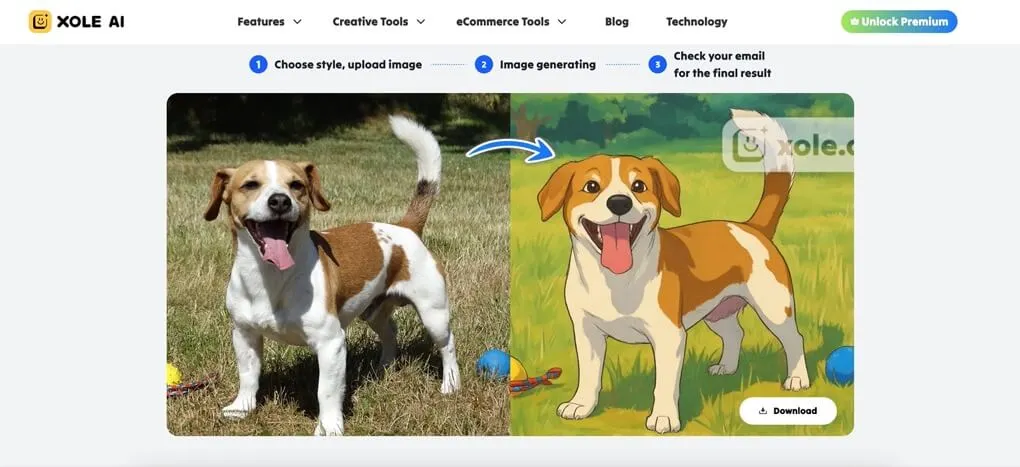
明確なスタイルを持つユーザーには、Xole AIが焦点を絞った代替案として適しています。 この専門プラットフォームは写真をアニメやスケッチ効果などの多様な芸術スタイルに変換し、追加のクリエイティブツールも提供します。特定の変換に特化しているため、効率的にターゲットを絞ったプロジェクトを進めることができます。
Xole AIの主な利点
- ワンクリックの簡便さ - 画像をアップロードし、ボタンを押すだけで即座に変換。複雑なプロンプト作成や試行錯誤は不要で一貫した結果を得られる。
- 高品質な出力 - 固定・最適化されたプロンプトでスタイルの一貫性を確保。高度な選択的処理により表情の詳細が鮮明に保たれ、背景に芸術的効果を適用。
- 多様な芸術スタイル - AIジブリ、ピクサー、ディズニー、レゴの効果など、人気のスタイルに画像を変換。各スタイルは専門的な品質を維持しつつ、顔や構造の重要な詳細を保つ。
- 基本的なスタイル変換を超える機能 - AI商品写真撮影、AIレシピ生成、AIホリデーセールバナーフォーマットなど、特殊なEC向け機能も対応。定期的に新機能やスタイルを追加。
- 無料トライアル利用可能 - 有料プランへの移行前にお試し可能。品質とスピードを体験できる。
- 軽量なプラットフォーム - 大規模な統合プラットフォームと異なり、Xole AIは効率的に動作し、専門的なスキルや高性能PCを必要としません。高速な読み込みと低システム要件で、多くのユーザーが利用可能。
最終評価
Canva AIのMagic Mediaは日常のデザイン作業に便利さをもたらします。背景除去は信頼性高く、Canvaの編集ツールとシームレスに連携して画像を仕上げやすくします。ワークスペースから離れずに多彩な芸術スタイルやテンプレートを使用でき、スムーズなデザイン体験が得られます。
ただし、AI画像生成には明らかな制限もあります。生成された画像にはしばしば解剖学的な誤りや不整合なディテールがあり、手動修正が必要です。これらの問題はCanvaの実装よりも、背景にあるAIモデルそのものに起因している可能性が高いです。より高度な画像生成能力を求めるユーザーには、専用のAIツールやオンラインサービスの利用がおすすめです。


- What Is Canva AI Image Generator?
- Key Features of Canva AI Image Generation
- Powered by Advanced AI Models
- Diverse Templates and Style Options
- Extensive Third-Party App Integration
- Complete Design Ecosystem
- How to Use Canva AI Photo Generator
- Step 1: Access Magic Media
- Step 2: Choose Style and Enter Your Prompt
- Step 3: Generate and Customize
- Step 4: Edit and Export
- Canva Pricing Plans
- When to Use Canva AI (And When Not To)
- 最適な利用タイミング
- 避けるべきケース
- 最良の代替案:Canva AI画像ジェネレーター
- 最終評価